Photo filters or AI restyling?
You want a different look for a photo. Start with how much of the original you want to change. A conventional color preset adjusts an existing image; generative restyling can redraw its subjects and setting. Choose according to the result you need.
Start with what must stay
If exact words on a shirt, a small logo, facial detail or a product’s shape must remain unchanged, keep the original and choose an editor with suitable local or color adjustments. Inspect the edit at full size. Generative restyling makes a new interpretation and may alter details you never asked to change.
For a painted pet, a paper-art portrait or a fictional carved-pumpkin likeness, AI restyling may fit the task. A generated image can suggest a material or a scene without being a physical object or a manufacturing file.
Match the method to the task
| What you want | A method to consider |
|---|---|
| Adjust color, contrast or grain while keeping the composition | A conventional adjustment or preset. Check the colors and details you need to retain. |
| Correct one small area with control over what changes | An editor with suitable local-editing tools. RemixFrame’s image styles do not provide a precision selection or layer editor. |
| Reimagine a photo as painting, illustration or digital craft art | AI restyling, followed by a full-size check against the original. |
| Make a print negative, vector cut file or production pattern | A workflow designed for that format. A stylized JPEG does not replace it. |
Compare the published examples
These pairs reuse existing fictional references and their published AI results. They show individual interpretations, not customer stories or a promise to preserve every detail.
A dog becomes a watercolor
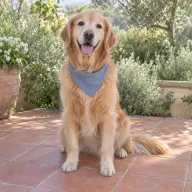
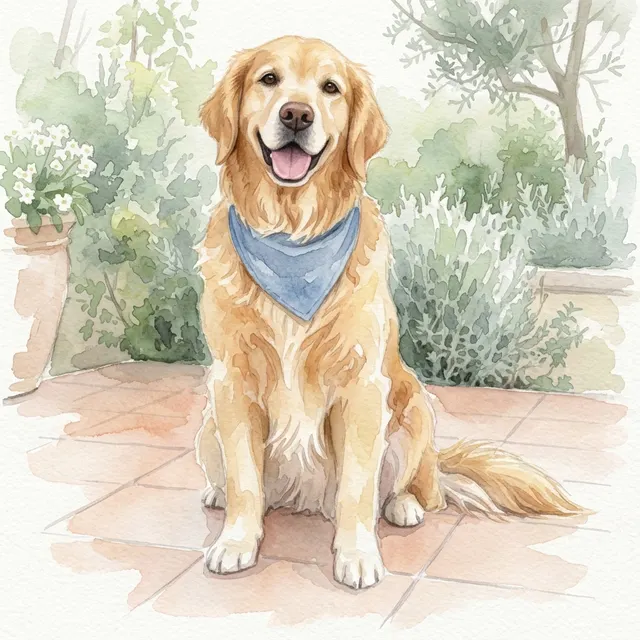
The golden retriever and blue bandana are useful details to compare. Painted edges, plants and background show the reinterpretation. One example cannot establish that every pet marking will remain. Review Photo to Watercolor.
Blue paper, imagined

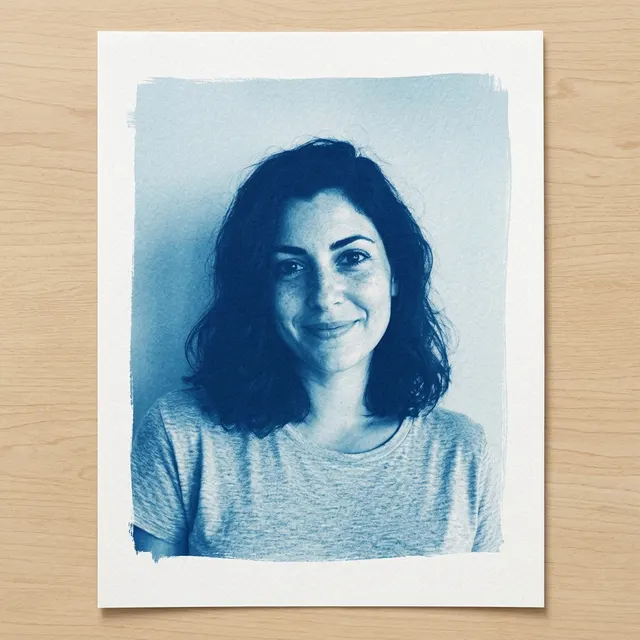
This portrait becomes blue-and-white artwork with a brushed paper margin. The paper scene is generated. It is not an exact channel conversion, calibrated print negative or physical sun print. Review the AI cyanotype effect.
A face becomes a carved likeness
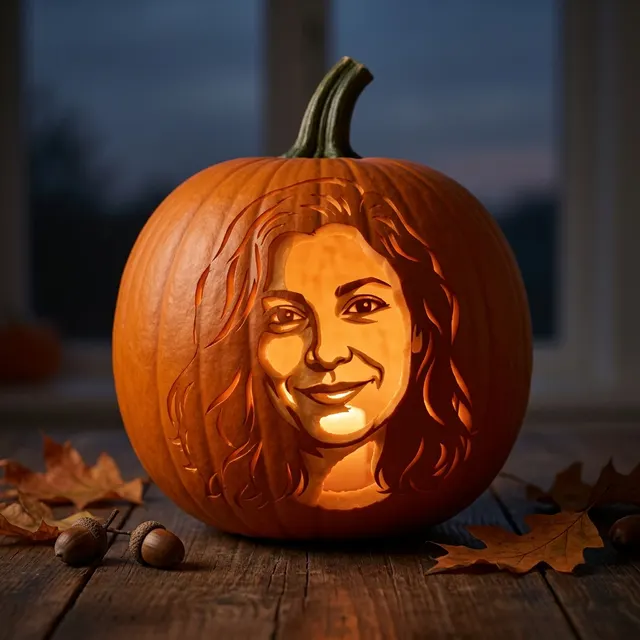
The fictional adult’s portrait is reinterpreted as a glowing carved-pumpkin likeness. Hair, features, material and setting are stylized. The result is an image to share, not a carving stencil or instructions for making a real pumpkin. Review Pumpkin Portrait.
Try the method that fits
For a RemixFrame image style, check that page’s subject requirements and published example. Select a photo you have permission to use, add a short note if helpful, and confirm the image shape. A note requests a detail; it cannot guarantee exact preservation.
Review your displayed account allowance and sign in if needed. Selecting a file or returning from sign-in prepares a draft. Generation starts only when you explicitly choose Create. Eligible newly registered, verified accounts can receive the existing one-image welcome allowance; check what your account actually shows. Videos have their own paid cost. See current photo and video pricing.
Once you have chosen a method, choose a clear reference photo. Explore painting looks or digital craft looks for examples that match your task.
Check the image before sharing
Look at the number of people, faces, hands, glasses, pet markings, text and background. Compare against the untouched original wherever fidelity matters. A result that looks good at thumbnail size can still have small errors.
Decide whether another generated interpretation is appropriate or a conventional edit is the better next step. Another generation uses the displayed allowance. Read how private photos and results are handled before uploading.
Further reading
VSCO explains presets and generated transformations. Adobe demonstrates a traditional painting-filter workflow. These are external references, not controls or services provided by RemixFrame.