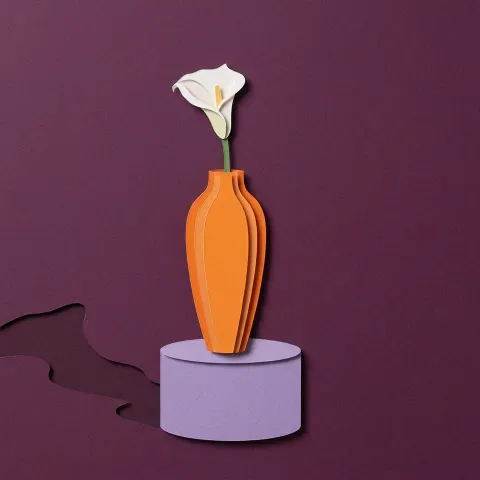
 Original
Paper Cut
Layers of paper, depth and color.
Compare layered paper, clay, plush, crochet, glass and blue-paper looks. Choose an effect for its demonstrated subject and digital result, not a physical craft kit.
Restyle my photoStarts with Paper Cut. You can change styles before generating.
How to choose a photo for AI art · Compare the existing fictional examples before you start.
Choose a filter or a generated craft look according to what must stay unchanged.
Each effect makes one flat JPEG. It is not a cutting pattern, 3D model, knitting instruction, glass plan or manufactured pin. Check the example and subject requirement before choosing; fine shapes, faces and lettering may change.
Paper Cut and Soft Clay show an orange-vase still life in layered paper or rounded clay. Plush and Crochet show a fictional pet reimagined with soft fabric or visible yarn loops. The output is an image, not a toy or a crochet pattern.
OriginalLayers of paper, depth and color.
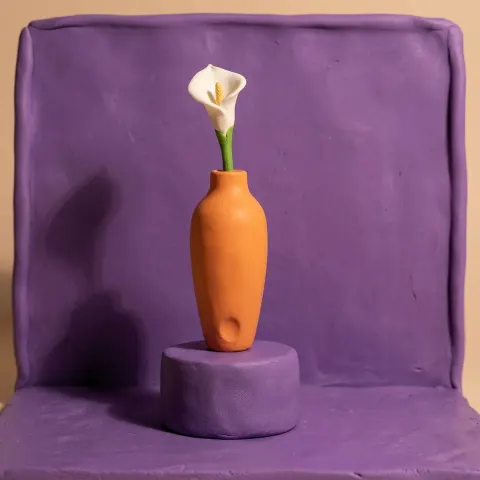 Original
Your subject, sculpted in soft clay.
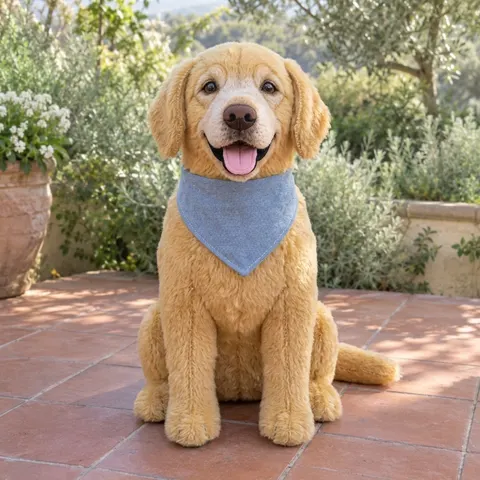
 Original
A soft toy version of your favorite face.
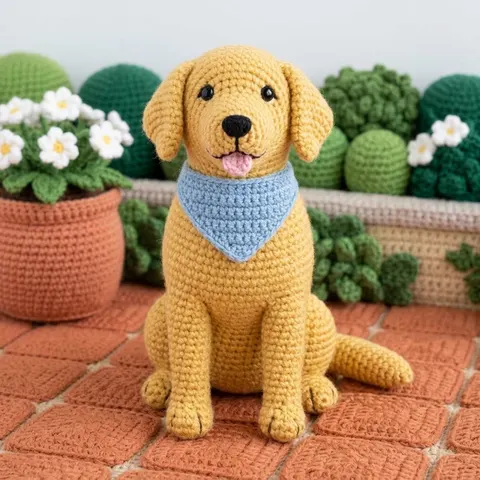 Original
A little character made of yarn.
Stained Glass uses colored panes and dark outlines. Cyanotype imagines a blue-and-white paper print; Leaf Cut simplifies one adult portrait into openings in a leaf; Enamel makes a glossy portrait keepsake mockup. These do not supply print negatives, cutting files or physical items.
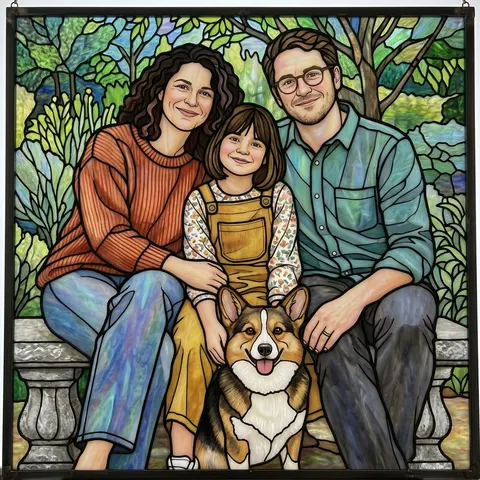
 Original
Color and light, framed in glass.
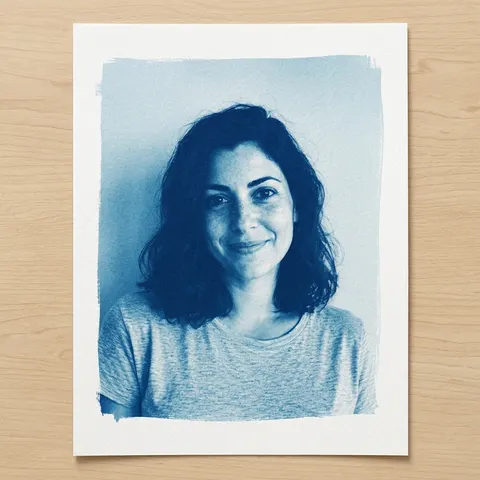
 Original
Make one AI cyanotype-style image with Prussian-blue tones, white highlights and textured-paper edges. Digital artwork only; details and likeness may vary.
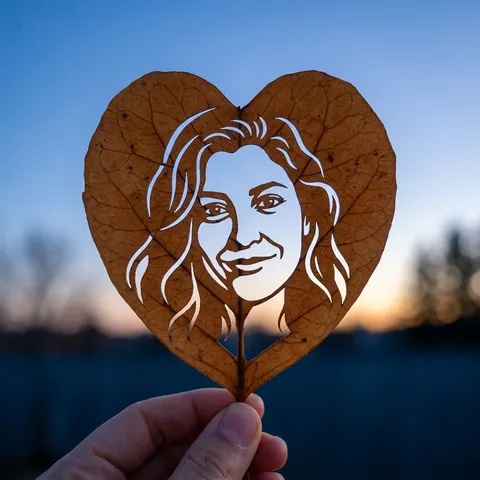 Original
Create one AI leaf-art portrait from your photo, with a face-shaped cutout, natural leaf veins and a softly blurred evening sky. Digital artwork; likeness may vary.
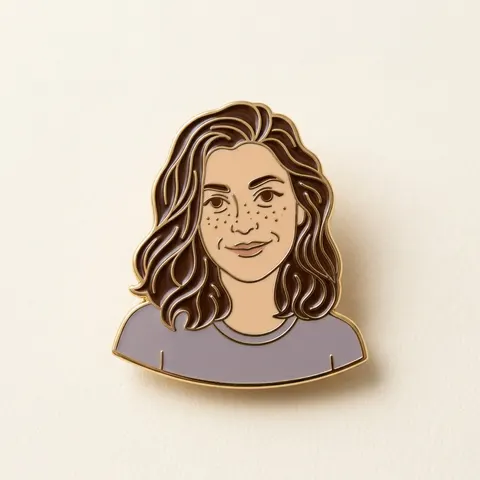 Original
Turn one photo into a glossy enamel pin-style keepsake image with metallic outlines. A digital artwork, not a physical pin or production file; details can vary.
Follow the effect’s own subject instructions. The reviewed craft examples use a still life, a fictional pet, an existing family photo or one fictional adult; they are not interchangeable input promises.
Open a style for its actual example, input advice and limitations. Your choice carries into Create.
Check likeness and fine details before downloading your JPEG. Each new version uses one photo generation.